Contacts are the people you are connected to within the Loop by Cuemill app. Among other things, you can communicate with your contacts via voice, video, and messaging, and you can share your devices with them.
How to add a contact?
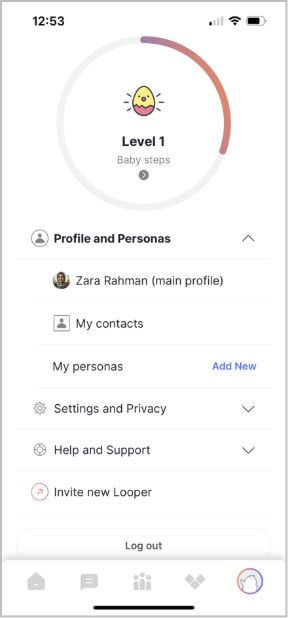
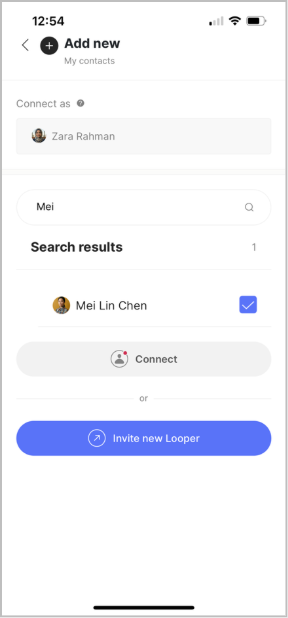
From the Account tab, select Profiles and Personas >My contacts and click Add New in the top right.
- If the person you’re trying to add has an account on the Loop by Cuemill App:
- Type their name in the search box to find matches.
- Then check the box in front of the desired profile and click Connect. This will send them a connect invite. (PS: If their profile does not show up in the search results, please ask them to make it searchable from their Account: Settings and Privacy > Privacy. Once you have connected, they can hide their account again, if preferred.
- If they have push notifications enabled, they can click on the connect invite push notification and click Accept, otherwise they can navigate to the Notifications Center (from the Home tab click the bell icon in the top right) to find the connect invite and click Accept.
- You should now see them in Account: Profiles and Personas > My contacts.
- If the person you’re trying to add is not on the Loop by Cuemill App, click on Invite new Looper to send them an invitation via your preferred communication channel (SMS, email, etc.). Once they have registered an account, please follow the above steps to add them as a contact.